How to Post an Update From Your Campaign on Aseel Campaign+: A Guide for Organizers

Nov 22, 2026
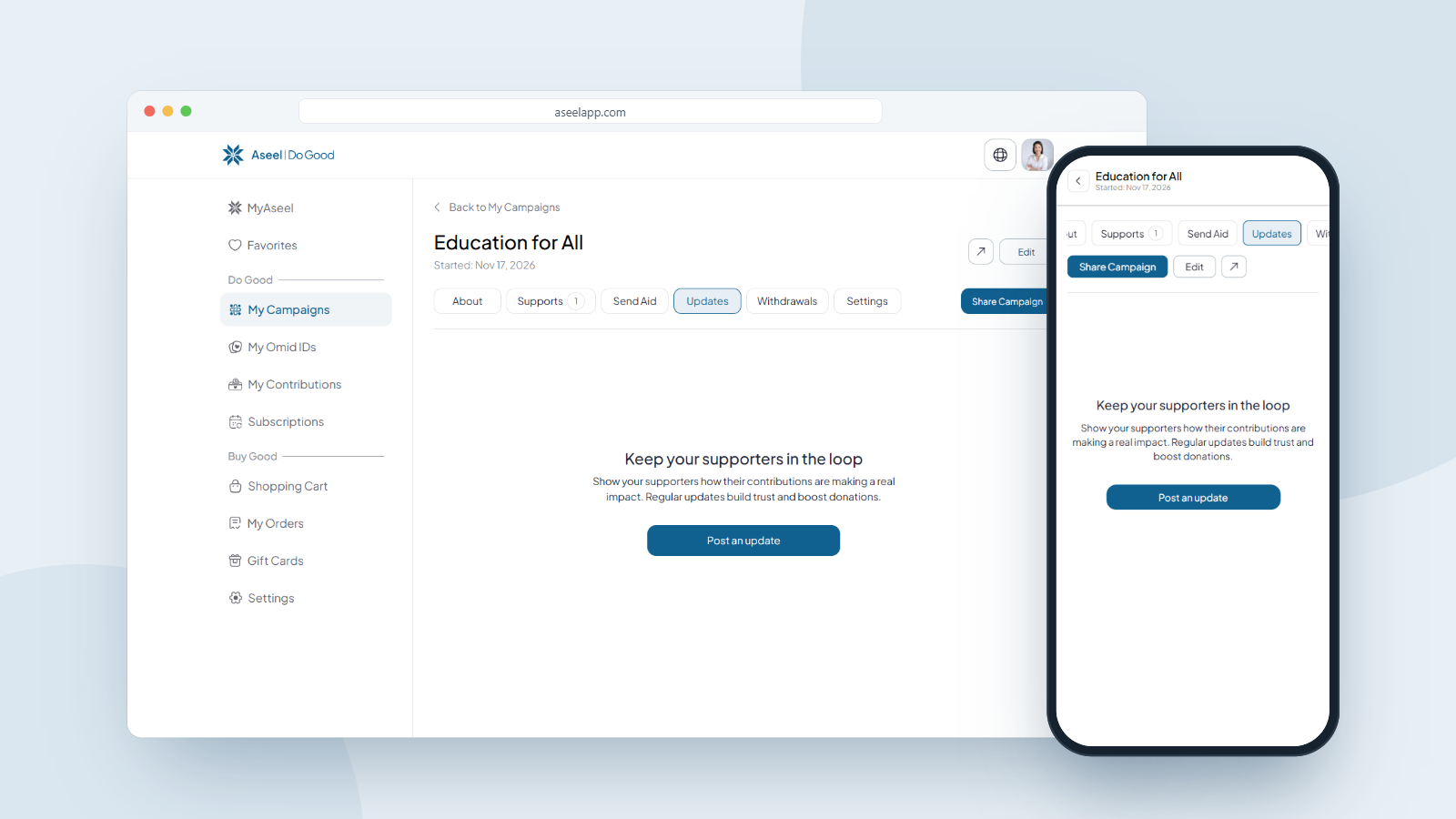
To post an update, open your campaign and go to the Updates tab, then click Post an update. Write your message in the editor, add photos or a video if you like, and click Post Update to publish it. Your update appears on your public campaign page, where your supporters can see it. You can edit or delete any update later.
Why Updates Matter
An update is how you keep your supporters in the loop. After someone donates, they want to know their contribution is making a real difference, and a short post showing progress is the simplest way to tell them. Regular updates build trust and encourage more donations, because people give again when they can see their help at work.
Think of updates as the running story of your campaign: a delivery completed, a milestone reached, a thank-you to your donors, or simply what's happening next.
How to Open the Updates Tab
On desktop or laptop:
1. Sign in and open My Campaigns from the left sidebar.
2. Click your campaign to open it.
3. In the row of tabs across the top (About, Supports, Send Aid, Updates, Withdrawals, Settings), click Updates.
On mobile:
1. Sign in, tap Profile in the bottom bar, then tap My Campaigns.
2. Tap your campaign to open it.
3. Open the tabs row and tap Updates.
If you haven't posted anything yet, you'll see a message that says "Keep your supporters in the loop," with a Post an update button to get started.
If you haven't posted anything yet, you'll see a message that says "Keep your supporters in the loop," with a Post an update button to get started.
How to Post an Update
Step 1: Open the update editor.
Click Post an update (or use the composer that says "Share progress, stories, and what's new..").
Step 2: Write your update.
Type your message in the text box. You can format it with the toolbar: alignment, bold, underline, italic, a link, and numbered or bulleted lists to keep things clear and readable.
Step 3: Save your work as you go (optional).
The Save button keeps your update saved while you're still working on it, before it goes public. Use it if you want to prepare your text first and post later. Saving does not publish the update.
Step 4: Add photos or a video (optional).
Use the photo and video icons to add media to your update.
• Photos: in the Upload Photos window, click the + to add your images. Supported file types are JPG and PNG. Please note: by uploading a photo, you agree that you, as the campaign organizer, are responsible for any copyright issue or claim associated with that photo, not Aseel. Click Add when you're done.
• Video: in the Upload Video window, upload a file (MP4, MKV or MOV) or paste a YouTube or Vimeo link in the Video URL box, then click Add.
Step 5: Post it.
When your update is ready, click Post Update to publish it. This is the step that makes your update live. Your post now appears in your campaign's Updates, with the date it was posted.
Tip: Keep updates short and genuine. A photo of a delivery, a line of thanks, or a quick note on progress does more for trust than a long report.
Frequently Asked Questions
- How do I post an update on my campaign?
Open your campaign, go to the Updates tab, click Post an update, write your message, add any photos or video, and click Post Update to publish.
- What can I add to an update?
Formatted text (bold, underline, italic, links, lists), photos (JPG or PNG), and a video (MP4, MKV or MOV, or a YouTube/Vimeo link).
- Who can see my updates?
Anyone who visits your campaign page. Updates appear publicly under the Updates section so your supporters can follow your progress.
- Can I edit or delete an update after posting?
Yes. Each update has Edit and Delete options. Editing lets you change the text and media; deleting removes the update permanently and can't be undone.
- Who is responsible for photos I upload?
You are. By uploading a photo, you agree that as the campaign organizer you are responsible for any copyright issue or claim associated with that photo, not Aseel.
- How often should I post updates?
As often as you have something real to share. Regular updates build trust and encourage more donations, so a short post whenever there's progress works well.
Keep Your Supporters Close
The campaigns that raise the most are the ones that stay in touch. Every update is a chance to show your donors where their money went and to remind them why they gave. Post often, keep it honest, and let your supporters be part of the story.
About Aseel
Aseel is a tech-driven startup providing a digital marketplace where artisans can sell their one-of-a-kind handcrafted products while supporting humanitarian efforts worldwide. We champion using practical skills to create the positive impact businesses and communities deserve. Aseel's intuitive platform empowers thousands of makers by connecting them with a global audience. Transparency and privacy are at the heart of everything we do. Our dedicated customer service team is available anytime to assist clients through our secure and protected platform.
Follow Aseel on Google
Add Aseel as a preferred source on Google to see more of our stories in your Search results.