How to Withdraw Your Money on Aseel Campaign+: A Guide for Organizers

Nov 22, 2026
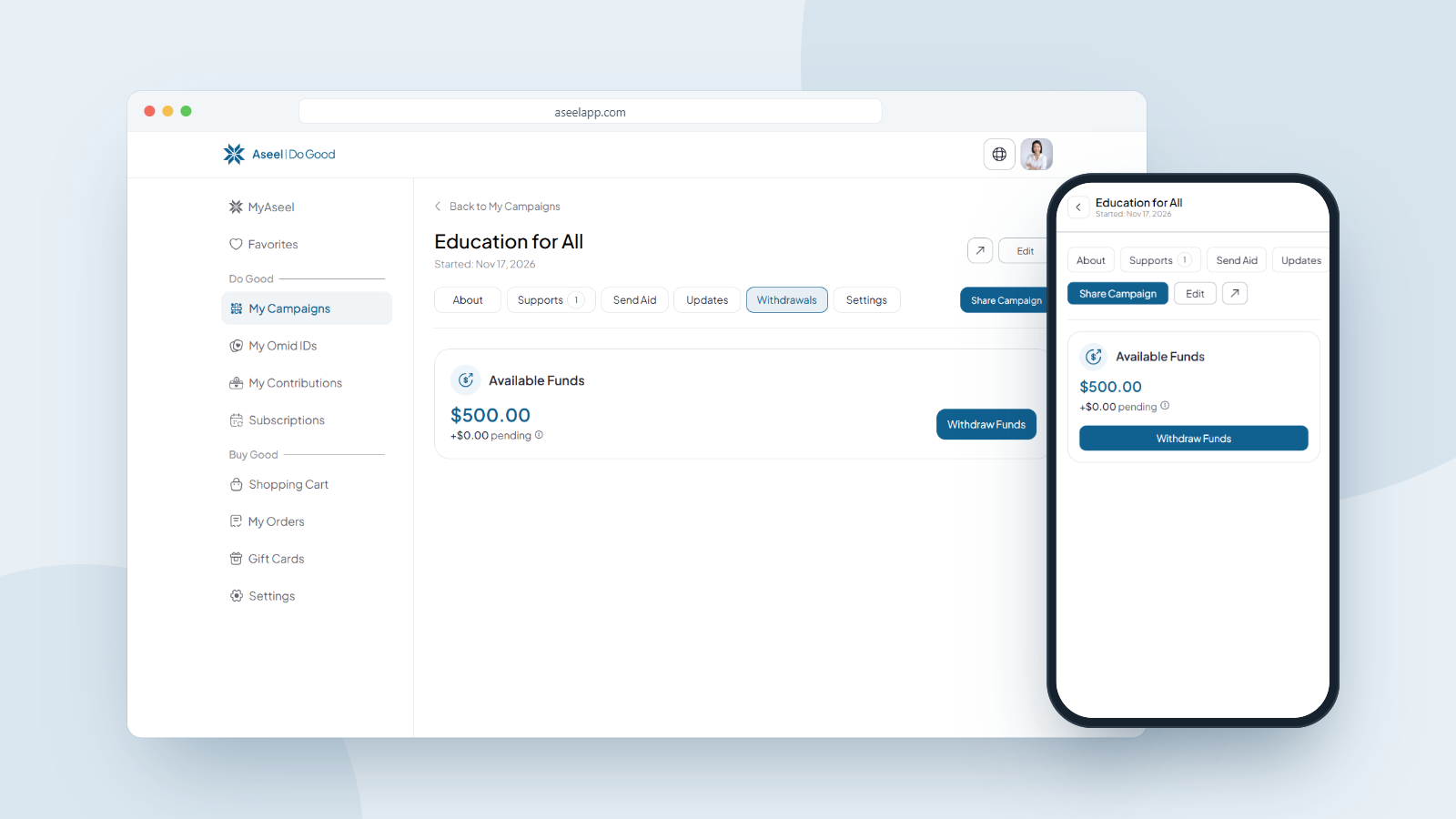
To withdraw your raised funds on Aseel Campaign+, open your campaign and go to the Withdrawals tab. You'll see your Available Funds and a Withdraw Funds button. First set up a payout method (Bank Account, Cash/Hawala, PayPal, HesabPay, Zelle or Debit Card), then enter your withdrawal amount, choose your method, verify with a 6-digit email code, and submit. Two fees apply to a withdrawal:
1. A 5% platform fee, charged on every withdrawal.
2. A transaction fee, which depends on the method you choose. PayPal, HesabPay, Zelle and Cash pickup have no transaction fee, while Hawala, bank transfers and Debit Card do.
Both fees are shown on the review screen before you confirm, and you can follow every request in your Payout History.
Before You Start: Set Up a Payout Method
Before you can withdraw anything, Aseel needs to know where to send your money. This is your payout method, and you can add one in two places: ahead of time, or right when you withdraw.
You can choose from six payout methods:
| Method | Good for |
|---|---|
| Bank Account | Direct bank transfers |
| Cash / Hawala | Cash pickup through a Hawala network |
| PayPal | Fast online payouts |
| HesabPay | Payouts inside Afghanistan (processed in AFN) |
| Zelle | US bank-to-bank transfers |
| Debit Card | Fast payouts to your card |
You can add a method in advance, or set one up right in the middle of a withdrawal. Either way works.
To add a payout method ahead of time (desktop):
1. Sign in and open My Campaigns from the left sidebar.
2. Select the Payout tab (in the row of tabs: Active, Pending, Completed, Expired, Deactivated, Rejected, Payout).
3. Under Add Payout Methods, click the + next to any method and fill in your details.
You can also add a method during the withdrawal itself, which is covered below.
How to Open the Withdrawals Tab
This is where all your withdrawal activity lives.
On desktop or laptop:
1. Sign in and open My Campaigns from the left sidebar.
2. Click your campaign to open it.
3. In the row of tabs across the top (About, Supports, Send Aid, Updates, Withdrawals, Settings), click Withdrawals.
On mobile:
1. Sign in, tap Profile in the bottom bar, then tap My Campaigns.
2. Tap your campaign to open it.
3. Open the tabs row and tap Withdrawals.
On this tab you'll see two things:
• Available Funds: the amount you can withdraw right now, with any pending amount shown below it.
• Payout History: a list of all your past and in-progress withdrawals, with their ID, receiver, method, amount, status and date.
How to Withdraw Your Funds, Step by Step
Step 1: Open the Withdrawals tab and click Withdraw Funds.
At the top of the tab, next to your Available Funds balance, click the Withdraw Funds button.
Step 2: If you haven't set a payout method yet, add one now.
If you have no payout method, you'll see the message "To withdraw your earnings, you first need to set up a withdrawal method." Click Add Payout Method, choose from the dropdown (Bank Account, Cash/Hawala, PayPal, HesabPay, Zelle or Debit Card), and enter your details. You can do this right here and continue your withdrawal in the same flow. If you already have a method set up, skip straight to the next step.
Step 3: Fill in the Request Withdrawal form.
The Request Withdrawal window opens, showing your Available Funds and a "Ready to withdraw" label. Fill in:
• Withdrawal Amount: how much you want to withdraw.
• Receiving Currency: the currency you want to receive (for example, USD).
• Add Note (Optional): up to 500 characters, if you want to add a note.
• Withdrawal Method: confirm or change the payout method (and account) you want the funds sent to.
Then click Continue to Verify.
Step 4: Review your withdrawal.
The Review your withdrawal screen shows a full breakdown before anything is sent:
• Method, Request Date and Request Amount
• Platform Fee (5%): applies to every withdrawal
• Transaction Fee: the fee for your chosen method (free for PayPal, HesabPay, Zelle and Cash pickup; see the fees section below)
• Receiving Amount: what actually reaches you after both fees
• Your payout details (name, phone, country)
Check everything carefully. (For HesabPay, payments are processed in AFN using the USD/AFN rate published by Da Afghanistan Bank.)
Step 5: Verify your email and submit.
Enter the 6-digit code sent to your email address in the Verify Your Email field. If it doesn't arrive, use Resend Code. Once the code is in, click Submit Withdrawal.
Your withdrawal request is now submitted. You'll see it appear in your Payout History.
Frequently Asked Questions
How do I withdraw money from my campaign?
Open your campaign, go to the Withdrawals tab, and click Withdraw Funds. Set a payout method if you don't have one, enter your amount, choose your method, verify with the email code, and submit.
What payout methods can I use?
Bank Account, Cash/Hawala, PayPal, HesabPay, Zelle and Debit Card. You can add one in advance from the Payout tab, or set one up during a withdrawal and continue in the same flow.
Is there a fee to withdraw?
Yes, there are two fees. A 5% platform fee applies to every withdrawal, plus a transaction fee that depends on your method. PayPal, HesabPay, Zelle and Cash pickup have no transaction fee, while Hawala, bank transfers and Debit Card do. Both fees and your final receiving amount are shown on the review screen before you confirm.
Which payout method is cheapest?
PayPal, HesabPay, Zelle and Cash pickup carry no transaction fee, so only the 5% platform fee applies. Hawala charges $3 to $5 per $1,000 within Afghanistan (5% per $1,000 elsewhere), bank transfers charge a flat fee by tier ($5.95 domestic US, $7.95 international, $49.95 for a USD wire) with minimum withdrawal amounts, and Debit Card has its own transaction fee.
Can I choose the currency I receive?
Yes. You select a Receiving Currency in the Request Withdrawal form. For HesabPay, payments are processed in AFN using the USD/AFN rate published by Da Afghanistan Bank.
How do I know my withdrawal went through?
Every request shows up in your Payout History on the Withdrawals tab, with a status such as Pending, Ready for Pickup or Canceled.
What's the difference between Withdraw Funds and Send Aid?Withdraw Funds transfers your raised money to your chosen payout method. Send Aid is a separate option for deploying funds as aid packages to verified families. This guide covers withdrawals.
Put Your Funds to Work
You've raised the money, and now you can access it. Set up your payout method, check the fee and receiving amount on the review screen, and keep an eye on your Payout History to follow each request through.
About Aseel
Aseel is a tech-driven startup providing a digital marketplace where artisans can sell their one-of-a-kind handcrafted products while supporting humanitarian efforts worldwide. We champion using practical skills to create the positive impact businesses and communities deserve. Aseel's intuitive platform empowers thousands of makers by connecting them with a global audience. Transparency and privacy are at the heart of everything we do. Our dedicated customer service team is available anytime to assist clients through our secure and protected platform.
Follow Aseel on Google
Add Aseel as a preferred source on Google to see more of our stories in your Search results.